

A user guide for Account Managers of the Quest Training Platform. The following instructions are based on the user accessing the system via a laptop or desktop computer. Access via other devices, such as a smartphone or tablet, may differ.
Quest can be found at – https://portal.focusquest.co.uk/
How to Sign In
Username: E-mail address
Password: Reset on first log in
Click “Sign In to Quest” found in the top right of the page:

A sign in box should appear.
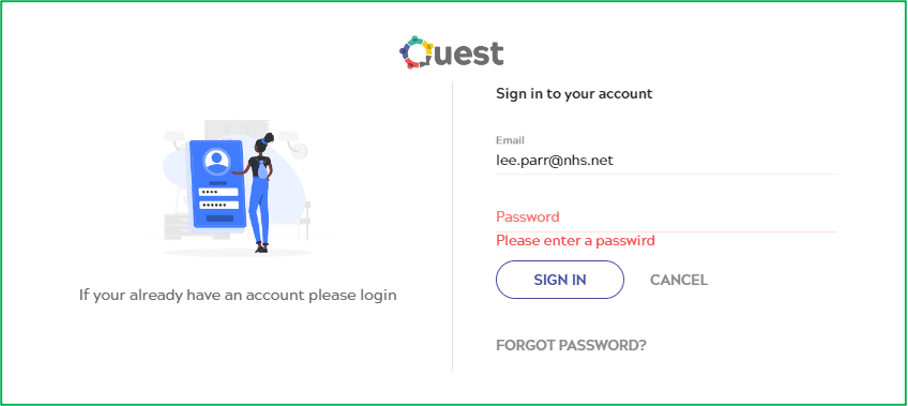
Click “Forgot Password?” located just under the ‘Sign In’ button.
Enter your e-mail to receive a link to reset your password. Once you have received the e-mail, click the reset link. If you did not receive the email, please check your ‘Junk’ and ‘Spam’ mailboxes.
Once you are singed in, you’ll need to select an organisation from the menu at the top of the page. For example, if you’re a Focus staff member, click “Select Organisation” from the top menu, select “Focus Independent Adult Social Work” from the drop down list and then click “Ok”.

Dashboard
To review your staff bookings and completed events, click “Manager Dashboard” from the top menu.
Once you have clicked on ‘Manager Dashboard’ you will be able to review your:
- Staff list
- Number of active bookings per staff member
- Staff account profile
- Staff event dashboard
Profile
Here you can manager specific information relating to your staff member and attendance at training, such as special requirements.

- Booking
All courses you have booked but have not yet attended - Companies
Select your company to enable specific events and benefits - Competencies
Booked events will transfer into your competencies once completed - Learning Journey
Upon request we can create a Learning Journey as required for staff needing to complete a sequence of events. For example; an induction etc. - Bundle Credits
Bundles are associated specifically with the commercial side of Quest.
Book a Course (or Event)
As a course could have several dates to choose from, we refer to each bookable date as an Event. For example; The course, Sensory Impairment Awareness, could have 3 Events to pick from.
To make a booking, head over to the portals homescreen by clicking “Home” or the Quest logo in the top menu.
NOTE: You will need to be signed in to your Quest account to make a booking.
You can search for courses using the magnifier search facility to the right of the home screen, or scrolling down the home page.
Once you have found the course you’re looking for, click “View Course” below the image and course title.
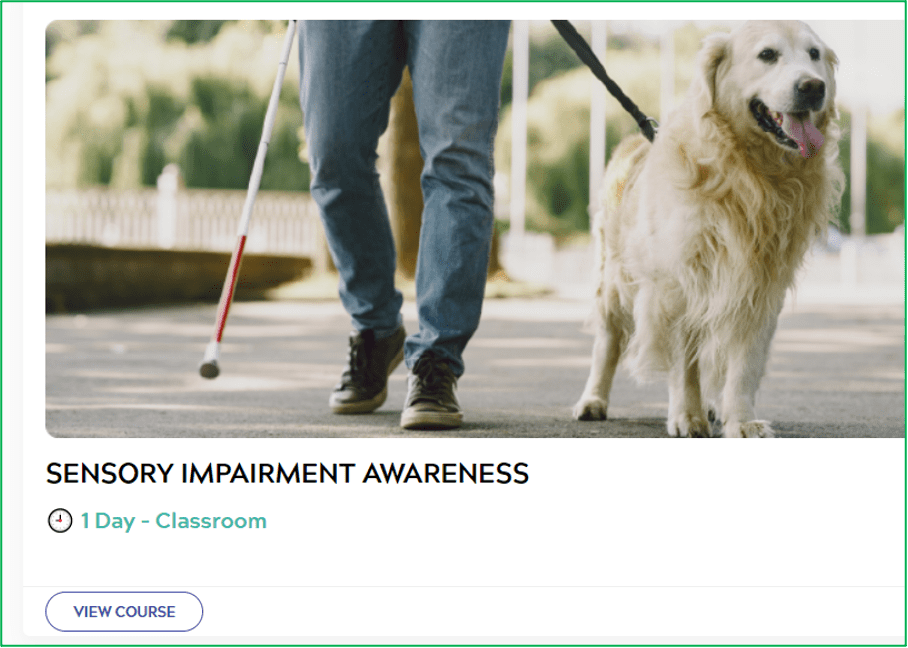
You will now see the course information page. This will contain details of what the course is about, along with cost information.
Available dates can be found towards the bottom of the page, listed under Events;

To select your desired date, click “View” which can be found in the very right column. If you do not see this button, please ensure your are signed in to your Quest account.
You now have the option to select the staff you would like booking on this course. Use the tick boxes next to each name to select them. If a staff member is already booked on this event, the system will display ‘Booked’ next to their name. You can filter all of the booked staff by clicking “Booked Only” check box.
Review the course event information, including the venue, date and times. To confirm your selection, click “Add to Cart”.
Some courses have a cost, however, depending on your organisation, you will be able to apply a discount at checkout. We’ll cover this in the checkout section below.
Review your cart and click “Checkout” to continue.

On the checkout page, when applicable, you will be able to select an Offer which will discount the cost of the course (organisation dependent). The Offers available to you will be displayed in the drop-down list.
Your course cost will be updated to reflect the selected Offer.
To confirm your booking, click “Pay by Invoice”.
Cancellations
You can cancel your bookings outside of 7 days of the event. This can be done by navigating to the ‘Bookings’ page of your dashboard. If you need to cancel within 7 days please contact us at info@focusquest.co.uk or replying to your confirmation email, and we will administer this for you.
Transfer
You are able to transfer your booking to a like for like event outside of 7 days. You can do this on your dashboard or contact us to make a transfer.
System Notifications
Quest automatically generated confirmations based on your activity within the system
- Booking
- Cancellation
- Competence reminders for expiring competencies. (2 Months)
- Non-Attendance
- Competency Applied
- Training Event Completed
If there are no session dates available for an event you are interested in, you can register your interest using the ‘Register Interest’ form. This option can be found at the bottom of the course information page.
If you have any questions or queries, please get in touch using the following methods. Our team are on hand Monday to Thursday, 8am to 5pm and Friday, 8am to 4:30pm (excluding bank holidays).
- 03003302975
- info@focusquest.co.uk
